

This guide will show you how to Customize World Settings on your Necesse Server
Looking for a Necesse game server? Click here to order your server!
Customizing your Necesse world settings is one of the most effective ways to craft a unique multiplayer experience for your community. Whether you want to adjust game difficulty, tweak mob spawn rates, toggle survival mechanics, or modify player safety parameters, Necesse offers broad flexibility to tailor host rules and gameplay flow. Server administrators can apply these modifications through multiple avenues, whether adjusting parameters during world creation, modifying live world configuration files, or utilizing in-game administrative console commands. Learning how to properly navigate and adjust these settings ensures your server stays balanced, accessible, and engaging for every player who connects. This guide provides a comprehensive overview of how to customize world settings on your Necesse server, explaining configuration methods, key settings to modify, and how to apply changes safely without losing server progress.
Changing World Settings
1. Log in to your Game Control Panel and navigate to your service.
2. Before making any changes, ensure that your server is fully stopped.
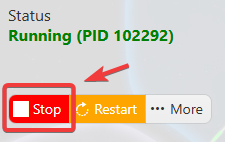
This helps prevent configuration changes from being overwritten or reverted to their default values.
3. Navigate to the Configuration Files tab to access your server’s configuration settings.
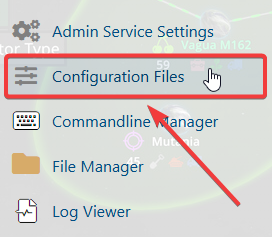
4. In the configuration files, navigate to saves\worlds\Citadel New World\worldSettings.cfg, then select Text Editor to open the file.

5. Adjust the configuration options according to your preferences.
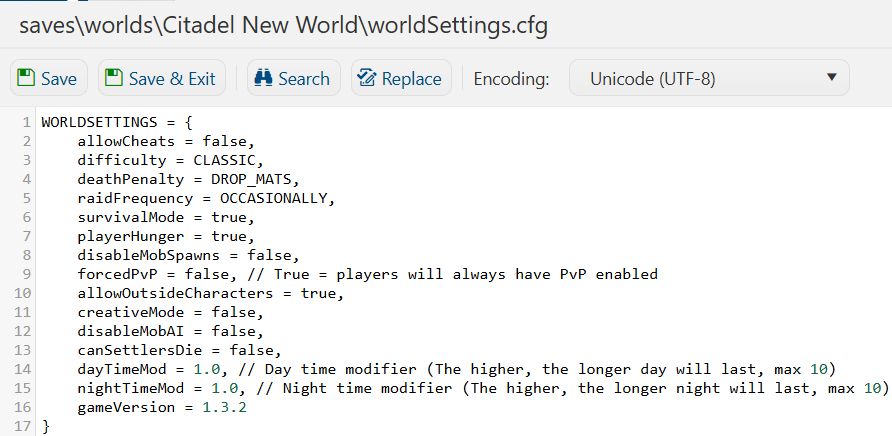
6. Once you have finished editing the settings, click the Save button to apply the changes to your server.